BUILD
Image Processor
Optimize, convert, and transform images on demand on our distributed architecture.
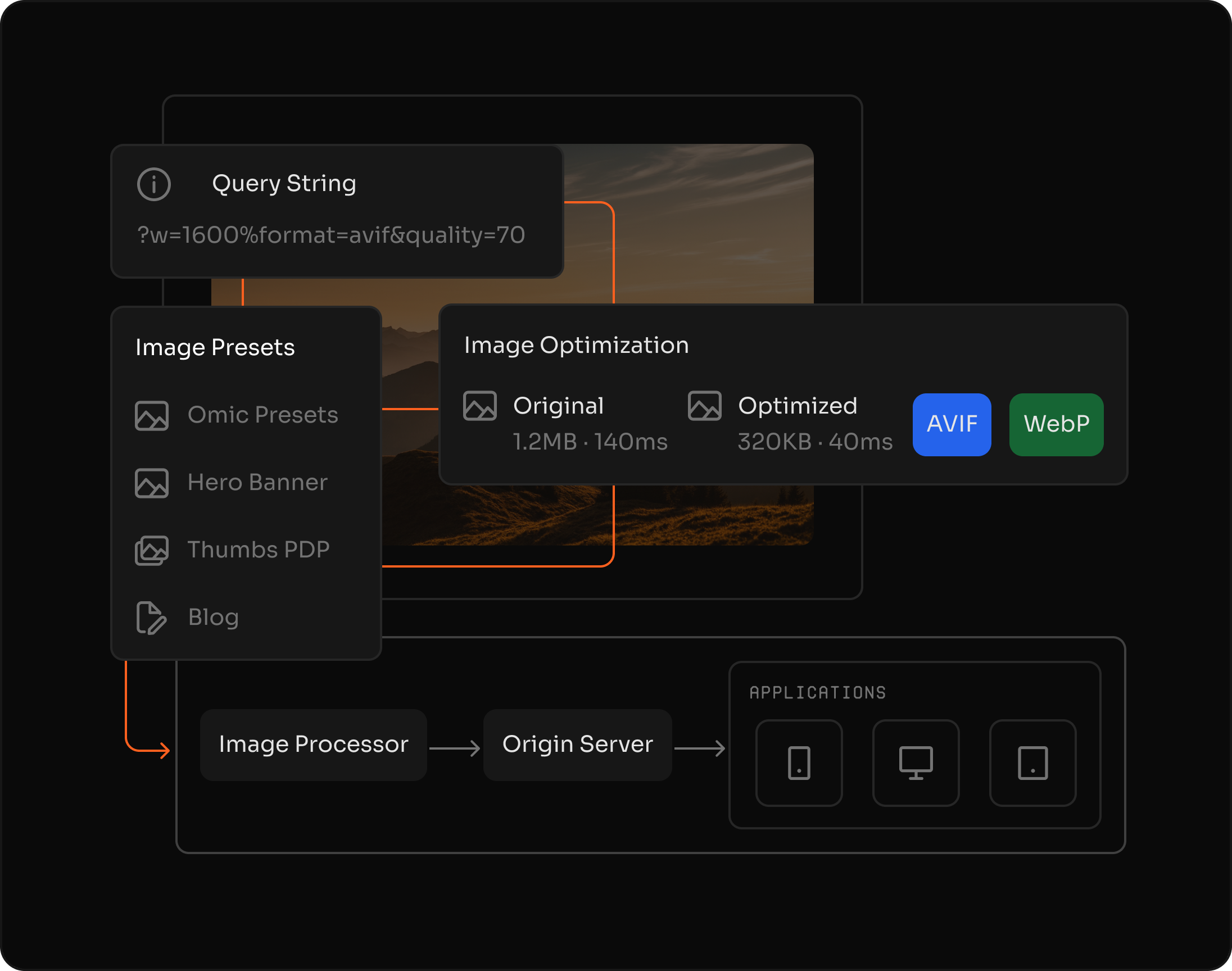
Optimize Images
Significantly reduce file sizes and speed up loading for media-rich pages while improving Core Web Vitals.
Convert
Automatically deliver the best format (WebP, AVIF or original) and generate variants via URL parameters, without complex pipelines.
Transform
Modify the image and its properties without any perceptible loss of visual quality for the user.


Fast, compact images ready for modern experiences.
Dynamic, on-demand image transformations
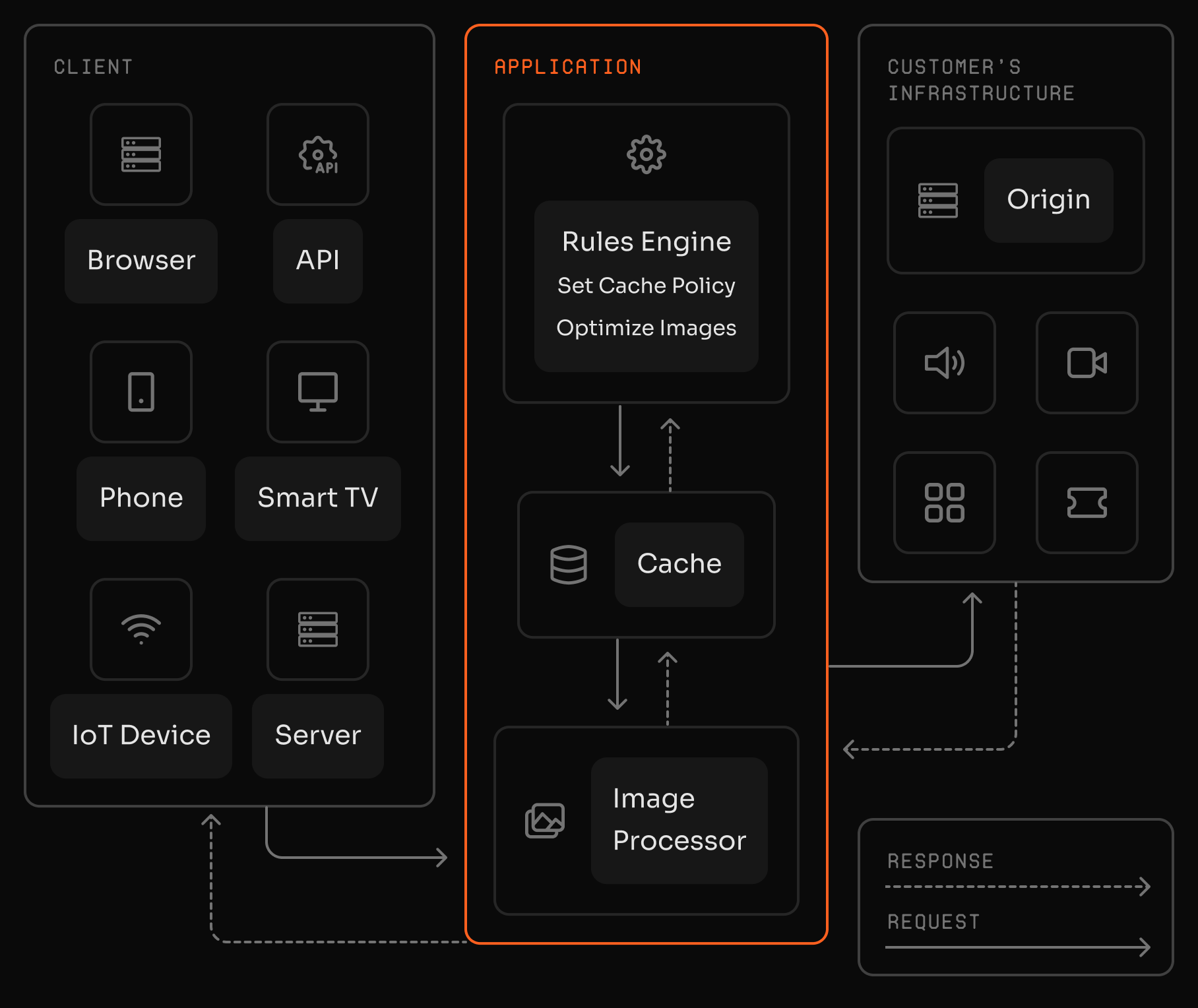
Perform dynamic image transformations on demand via URL, adapting dimensions, aspect ratio and quality to each context—such as browser, screen size or network conditions.
Apply a full chain of transformations in a single call, resizing, converting and adjusting quality efficiently, removing the need for multiple stored versions and simplifying the entire publishing workflow.
Multi-format optimization and quality preservation
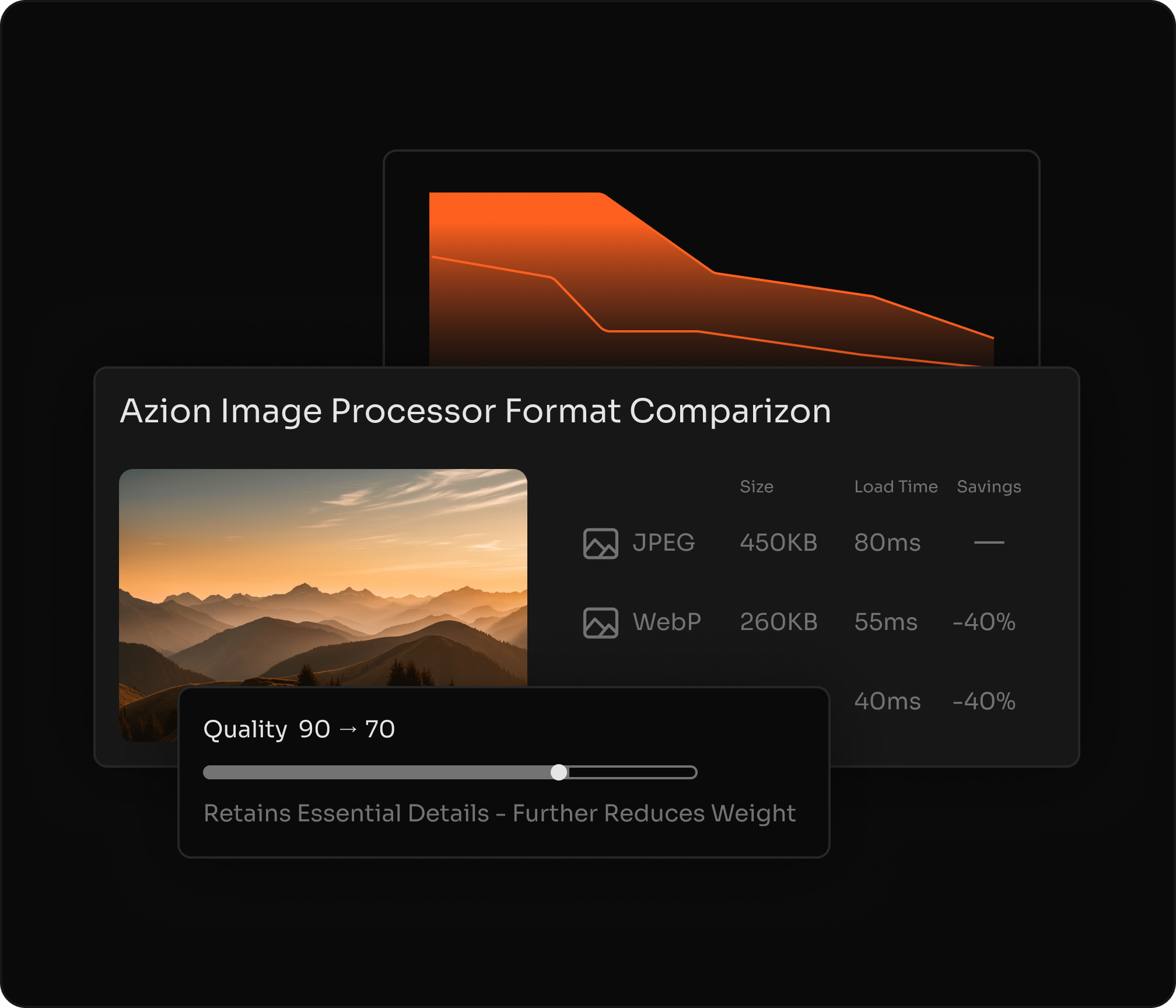
Optimize images in any format while preserving visual quality, delivering WebP or AVIF when supported and maintaining color fidelity and sharpness.
Automatically adjust resolutions and pixel densities for each device without inflating file size, and compress efficiently by controlling quality to balance weight and appearance.
See how to use
Frequently Asked Questions
What is Image Processor?
Image Processor is an Applications module that manipulates images on demand using URL parameters. It helps you deliver derived images without storing multiple versions.
How do I resize an image with Image Processor?
Resize by adding an ims query string with width and height in pixels, using the format WidthxHeight. You can also use fit-in/WidthxHeight to fit the image into a bounding box while preserving aspect ratio.
Can I preserve aspect ratio when resizing?
Yes. Provide only one dimension (Widthx or xHeight) and Image Processor calculates the other dimension automatically to preserve aspect ratio.
Which image formats are supported?
Image Processor supports JPEG, GIF, PNG, BMP, ICO, WebP, and AVIF. WebP and AVIF delivery depends on browser support.
How do I convert an image to WebP or AVIF?
Use a format filter in the ims parameter to convert to webp or avif. To convert to AVIF, the request must include Accept: image/avif, and for WebP it must include Accept: image/webp.
What are the default processing limits?
The default limits are a maximum image size of 150 MB, maximum width of 3840 pixels, and maximum height of 2160 pixels.
Why can I get a 504 error when using ims?
To ensure proper processing, the ims parameter must be the last query string parameter in the URL. If another parameter comes after ims, the request may return a 504 error.
Can I apply multiple transformations in a single request?
Yes. You can chain multiple filters inside the ims parameter, combining operations like resizing, quality adjustment, rotation, and format conversion in one URL.
How is Image Processor typically configured in production?
A common setup is to enable Image Processor and apply cache policies and optimization behaviors via Rules Engine in Applications. This lets you automate optimization for specific file types and keep processed images cached for faster delivery.
How can I measure the impact of image optimization?
You can monitor traffic savings by tracking bandwidth reduction metrics, comparing processed images against original transfers over time.